
Gemma 4 + Ollama + n8n: Run a Free Local AI Agent in 20 Minutes (2026 Tutorial)
Stop paying OpenAI API fees. Google Gemma 4 (Apache 2.0) + Ollama = frontier-level LLM running locally for free. Connect it to n8n in 20 minutes. Your data never leaves your machine.

Updated

Setting up a local Gemma Ollama n8n AI agent frees you, in a single install, from the three constraints that weigh down most modern automations: API costs, lock-in to a cloud vendor, and the leakage of your data to servers you don't control. In this tutorial, you'll assemble a 100% local, free, private AI agent by connecting Google's Gemma 4 model (served by Ollama) to your n8n instance. By the end, you'll have an assistant that can classify emails, answer questions about your documents, and orchestrate workflows — without a single byte ever leaving your infrastructure.
This guide is deliberately complete: we cover the why (cost, privacy, sovereignty), hardware requirements as orders of magnitude, step-by-step installation, the n8n connection via the AI Agent node, two concrete use cases (email classification and local RAG), then real-world performance, the limits versus the cloud, GDPR compliance, and troubleshooting for the most common errors.
Why choose a local AI agent over the cloud?
Before typing a single command, it helps to understand what makes a local Gemma Ollama n8n AI agent so compelling. Three reasons come up again and again with our clients.
Cost first. An n8n automation that calls GPT-4o or Claude pays for every request. While you're prototyping, the bill stays modest. But the moment a workflow processes hundreds of emails a day, classifies tickets continuously, or enriches a database, API calls run into the thousands — and the bill climbs fast. With Gemma served by Ollama, the inference cost drops to zero: you pay for electricity and hardware, full stop. For high, repetitive volume, the math is often unbeatable.
Privacy second. When you send the contents of an email, a contract, or a client file to an external API, that data passes through a third party. Even with the best contractual guarantees, you lose physical control of the information. A local AI agent flips that completely: the text is processed on your own machine, and nothing is ever transmitted outside. For sensitive sectors — healthcare, legal, finance, HR — this difference isn't a detail, it's a prerequisite.
Sovereignty third. Depending on a cloud API means accepting its price changes, rate limits, model deprecations, and outages. An open-source model like Gemma 4, under the Apache 2.0 license, is yours once downloaded. It will keep working exactly the same way two years from now, regardless of any vendor decision. You own your stack end to end.
On April 2, 2026, Google launched Gemma 4 under the Apache 2.0 license. This isn't a demo model or a bridled version: it's a frontier-level model — comparable to Claude Haiku and GPT-4o mini — available in 4 sizes (2B, 8B, 16B, 31B) and usable for free, locally, with no data sent externally.
Combined with Ollama (the local model runtime that exploded in popularity in 2025) and connected to n8n, this setup gives you:
- Zero inference cost — no paid API
- Absolute privacy — your data never leaves your machine
- Unlimited throughput — no rate limits, no quotas
- Native tool use — Gemma 4 natively supports tool calls (function calling) for your n8n agents
Here's the step-by-step tutorial. Duration: 20 minutes if you've never installed Ollama.
What are the hardware prerequisites to run a local AI agent with Gemma 4 and n8n?
New to n8n agents? Start with our tutorial on creating your first AI agent before moving to local models.
The first question everyone asks: "Is my machine powerful enough?" The answer depends on the model size you choose. Here are the orders of magnitude to keep in mind — valid as of the publication date and likely to evolve with future Ollama quantizations.
Minimum hardware:
- For Gemma 4 2B: 8 GB RAM (runs even on a 2022 laptop, without a dedicated graphics card)
- For Gemma 4 8B: 16 GB RAM or a dedicated GPU (NVIDIA with 8 GB VRAM)
- For Gemma 4 16B and 31B: dedicated GPU recommended (16-24 GB VRAM)
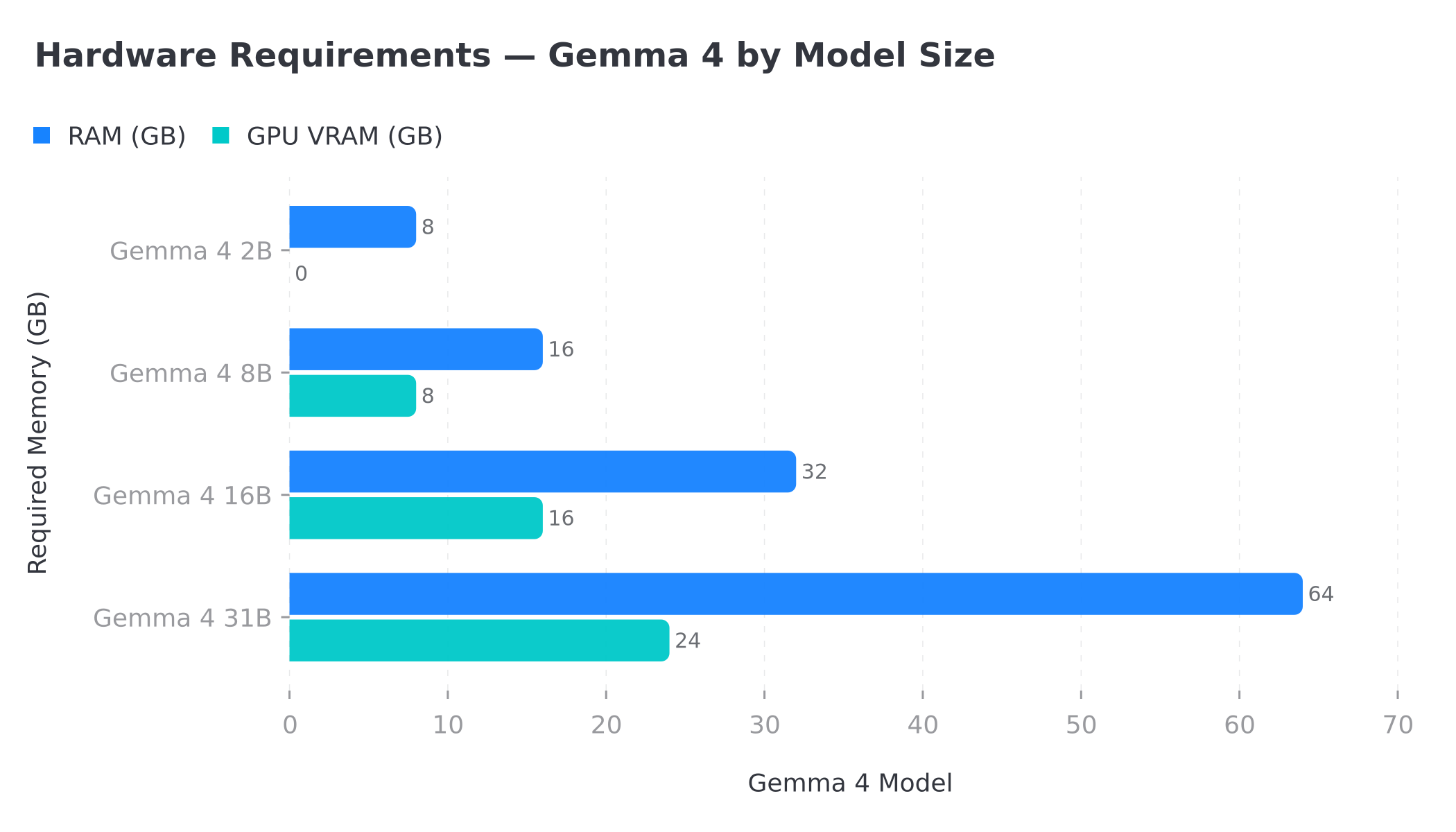 Gemma 4 hardware requirements: RAM and GPU VRAM needed for the 2B, 8B, 16B, and 31B versions
Concretely, two mechanisms explain these figures. First, a model must be loaded fully into memory to run: the more parameters it has, the more RAM it occupies (or VRAM if you run it on a GPU). Second, Ollama applies quantization — it compresses the model's weights (often to 4 bits) to shrink its memory footprint without noticeably degrading quality. It's thanks to this quantization that an 8-billion-parameter model can fit in 16 GB of RAM.
If you're working on CPU only, stick to the 2B version: it stays smooth and is plenty for most automation tasks (classification, summarization, extraction). As soon as you have a recent NVIDIA GPU, move up to the 8B: the quality gain is clear and the speed becomes comfortable. The 16B and 31B versions are best reserved for machines with a professional graphics card or a high-end consumer GPU.
Software:
- macOS, Linux or Windows 10/11
- n8n installed locally or in the cloud (n8n.cloud, VPS with Docker)
- 5 GB free disk space for the 2B model (15 GB for 8B)
If you don't have n8n yet, start with our tutorial to create your first AI agent with n8n — it walks you from installation to your first workflow. And if you plan to host everything on your own server, our self-hosted n8n on VPS guide details the ideal Docker setup for running n8n and Ollama side by side.
The full journey, from installing Ollama to your first connected workflow, always follows the same five-step logic. Here it is, summarized before we dive into the detail.
 The five steps: install Ollama, download Gemma, test the model, connect n8n, run the first workflow
Step 1: Install Ollama
Ollama is a runtime that radically simplifies running local LLMs. It handles model downloading, quantization, and exposing a local API for you — you don't have to do any low-level configuration. It's exactly the building block that turns a raw open-source model into a service ready to power your local AI agent.
On macOS / Linux:
curl -fsSL https://ollama.com/install.sh | sh
On Windows: Download the installer from ollama.com and run it. Ollama installs as a Windows service and starts automatically in the background, listening on port 11434.
Verify installation:
ollama --version
# → ollama version 0.3.x or higher
Once Ollama is installed, a small server runs permanently on your machine. It's what will receive requests from n8n and return the responses generated by Gemma. You can verify it's responding at any time by opening http://localhost:11434 in a browser: you should read "Ollama is running".
Step 2: Download and choose the right Gemma model
# 2B version — recommended for machines without GPU
ollama pull gemma4:2b

# 8B version — better quality, requires 16 GB RAM or GPU
ollama pull gemma4:8b
Download takes 5 to 15 minutes depending on your connection (2 to 5 GB depending on version). Ollama downloads the model once, stores it locally, then reuses it for every subsequent request — including offline.
How do you choose the right size? Start from the use case, not the spec sheet. For email triage, ticket classification, field extraction, or short summarization, the 2B version is more than enough and stays fast even on CPU. For tasks that demand more finesse — nuanced reply drafting, multi-criteria reasoning, understanding technical documents — the 8B brings a real quality jump. Our recommendation: start with the 2B to validate your workflow, then switch to the 8B only if quality demands it. Changing models in n8n comes down to editing a single line.
You can list installed models at any time with ollama list, and free up disk space by removing ones you no longer use with ollama rm <model>.
Step 3: Test Gemma 4 locally
Before integrating it into n8n, verify the model works correctly by chatting with it directly:
ollama run gemma4:2b
You'll enter an interactive chat. Type a few questions to assess response quality and speed on your machine. This is also the moment to check that latency is acceptable for your use case. To exit: /bye
Tool use test (function calling): function calling is what turns a simple chat model into a true agent. Instead of replying only in text, Gemma can decide to call a tool (a function) with structured parameters. Let's verify it works:
curl http://localhost:11434/api/chat -d '{
  "model": "gemma4:2b",
  "messages": [{ "role": "user", "content": "What is the weather in Paris?" }],
  "tools": [{
    "type": "function",
    "function": {
      "name": "get_weather",
      "description": "Gets weather for a city",
      "parameters": {
        "type": "object",
        "properties": { "city": { "type": "string" } },
        "required": ["city"]
      }
    }
  }]
}'
Gemma 4 should return a structured tool call (with name: "get_weather" and city: "Paris") — proof that function calling works. This is exactly the mechanism the n8n AI Agent node will exploit to give your local agent access to tools: web search, database, email sending, and more.
How do you connect Ollama to n8n? (Step 4)
Ollama exposes a REST API compatible with OpenAI's at http://localhost:11434. That's what makes integration so simple: n8n thinks it's talking to OpenAI, when in reality everything stays local. Three approaches are possible depending on your setup.
If n8n runs locally (same machine as Ollama):
In your n8n workflow, add an HTTP Request node with this configuration:
- Method: POST
- URL:
http://localhost:11434/api/chat - Body (JSON):
{
  "model": "gemma4:2b",
  "messages": [
    { "role": "system", "content": "You are a helpful and precise assistant." },
    { "role": "user", "content": "{{ $json.message }}" }
  ],
  "stream": false
}
If n8n runs in the cloud or on a VPS:
You need to expose Ollama on the network. On the server hosting Ollama:
# Launch Ollama exposing on all interfaces
OLLAMA_HOST=0.0.0.0:11434 ollama serve
Then in n8n, replace localhost with your Ollama server's IP. Warning: exposing Ollama on the network without protection is risky. In production, always place it behind a reverse proxy (Nginx, Caddy, Traefik) with authentication, or restrict access to your private network. If n8n and Ollama run on the same VPS via Docker, the cleanest option is to have them communicate over the internal Docker network without exposing anything publicly.
Recommended approach — the AI Agent node with an OpenAI-compatible model:
This is the most powerful option. n8n includes an "AI Agent" node that orchestrates reasoning, memory, and tool calls. Plug a "Chat Model (OpenAI)" sub-node into it, pointing to Ollama. Configure an "OpenAI API" credential with:
- Base URL:
http://localhost:11434/v1 - API Key:
ollama(any value, Ollama doesn't require one) - Model:
gemma4:2b
With this configuration, you get all of n8n's agent machinery — tool chaining, conversation memory, structured outputs — while keeping inference 100% local. To go further and give your agent access to external tools via the MCP protocol, see our guide on connecting n8n to an MCP server.
Understanding the architecture of a local AI agent
Before building your first workflow, let's take a moment to visualize how the pieces fit together. This mental image is what will let you debug calmly later.
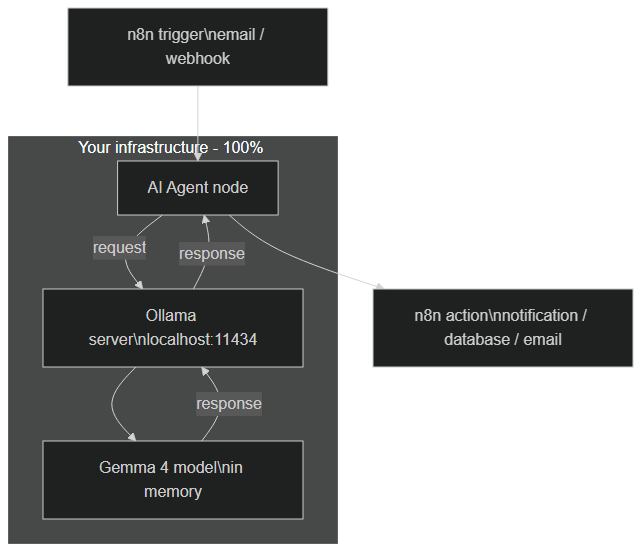 Local architecture: n8n trigger → AI Agent node → Ollama API → Gemma 4 model, with no external network egress
The diagram is deliberately simple, and that's the whole point. A trigger (a new email, a webhook, a schedule) starts the workflow in n8n. The AI Agent node formulates a request and sends it to the Ollama server, which runs the Gemma 4 model loaded in memory. The response flows back along exactly the same path, then n8n continues its workflow: notification, database write, email send, and so on.
The crucial point: the arrow that would go out to an external cloud simply doesn't exist. Where a classic architecture would send your data to OpenAI's API, here all processing stays confined within your perimeter. That's exactly what makes a local AI agent valuable for sensitive data.
Step 5: First agent workflow — classifying emails
Here's a concrete and immediately useful example: an agent that summarizes incoming emails and classifies them by priority, entirely locally.
Workflow structure:
- Trigger: Gmail / IMAP — triggered on each new email
- HTTP Request → Ollama/Gemma 4 with the prompt:
"Analyze this email and return a JSON with: {subject: string, priority: 'high'|'medium'|'low', summary: string (max 2 sentences), action_required: boolean}. Email: {{ $json.body }}" - JSON Parse → Extracts fields from the returned JSON
- Switch → Branch on priority
- Slack / Email → Notification for high-priority emails only
This workflow runs locally, sorts your emails without any data going to OpenAI, and costs €0/month.
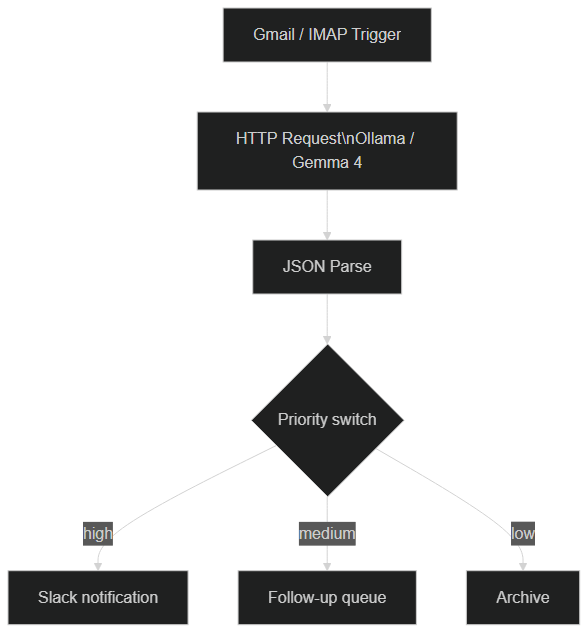 n8n workflow: Gmail Trigger → Ollama/Gemma 4 → JSON Parse → Priority Switch → Slack notifications or archiving
To really understand what happens at runtime, here is the sequence of exchanges between components, step by step, for a single processed email.
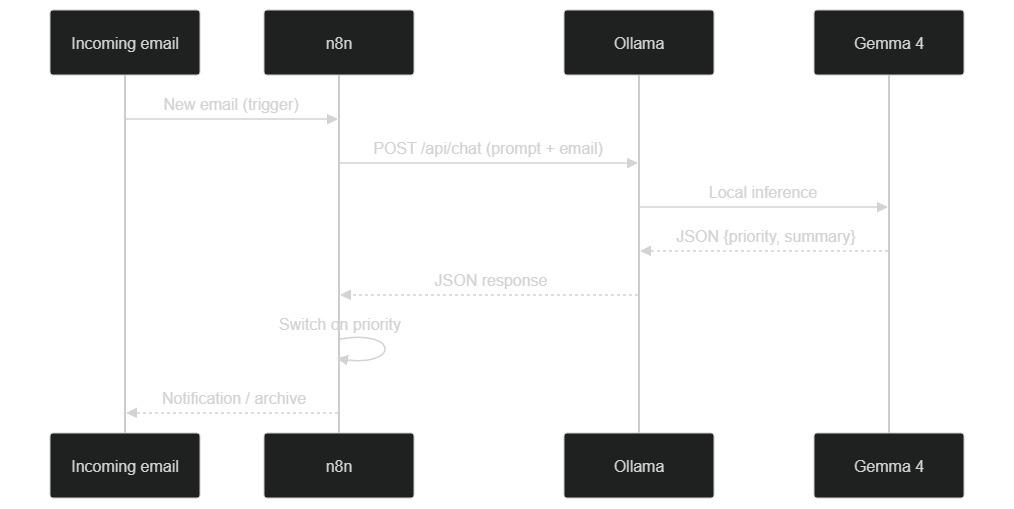 Sequence diagram: n8n sends the prompt to Ollama, Gemma generates the JSON, n8n routes by priority — all locally
This pattern generalizes to a wide range of cases: support ticket sorting, inbound lead qualification, extracting information from forms, comment moderation. The principle stays the same — a trigger, a call to Gemma for the "intelligence" part, then classic routing logic in n8n. To explore more advanced scenarios built on Gemma and n8n, our article on advanced use cases for local AI agents with Gemma 4 goes well beyond this first example.
Going further: a 100% local RAG on your documents
The use case that alone justifies going local is RAG (Retrieval-Augmented Generation): letting your agent answer from your internal documents — contracts, procedures, knowledge base — without ever sending them to the cloud.
The principle is as follows. You split your documents into small chunks, convert them into vectors using an embeddings model (Ollama can also serve embeddings models, again locally), then store them in a vector database. When a question arrives, n8n retrieves the most relevant passages, injects them into Gemma's prompt, and the model produces an answer grounded in your real data rather than its general knowledge.
Here's the skeleton of a local RAG workflow in n8n (simplified example):
1. Ingestion (one-time)  : Read documents → split into chunks →
                           embeddings via Ollama → store in a vector database
2. Query (on demand)     : User question → embed the question →
                           retrieve nearest chunks → inject into the prompt →
                           answer generation by Gemma 4
For an SMB handling confidential documents, this design is radically different from a cloud solution: the knowledge base stays on your server, embeddings are computed locally, and so is generation. No link in the chain leaks outside. It's the kind of architecture we put in place for clients who simply cannot, for legal or contractual reasons, entrust their documents to a third party.
One subtlety worth highlighting: in a local RAG, the quality of the answer depends far more on the retrieval step than on the model itself. A 2B model fed with the right three paragraphs from your documents will outperform a much larger model that has to guess. So invest your effort where it counts — clean document chunking, sensible chunk sizes, and a good embeddings model — rather than reflexively reaching for the biggest LLM. This is good news for a local setup, because it means even modest hardware can deliver high-quality, grounded answers as long as the retrieval pipeline is solid.
Performance and limitations: local vs cloud
Let's be honest: local isn't magic, and it doesn't replace the cloud in every case. Here's what you need to know to decide with full awareness.
What Gemma 4 2B does well:
- Classification, summarization, structured information extraction
- Responses in more than 20 languages (supports 140 languages)
- Reasoning over long contexts (up to 250,000 tokens)
What Gemma 4 2B does less well:
- Complex mathematical reasoning (prefer the 8B or 16B)
- Complex multi-file code (the 8B is significantly better)
- Speed: on the order of 15 to 30 tokens/second on CPU, and 80 to 150 tokens/second on a recent GPU (orders of magnitude, varying by hardware)
The real question isn't "local or cloud?" but "local and cloud, depending on the need." The chart below summarizes the typical trade-offs between a local and a cloud stack on the criteria that matter most — read it as an illustrative trend, not a numeric benchmark.
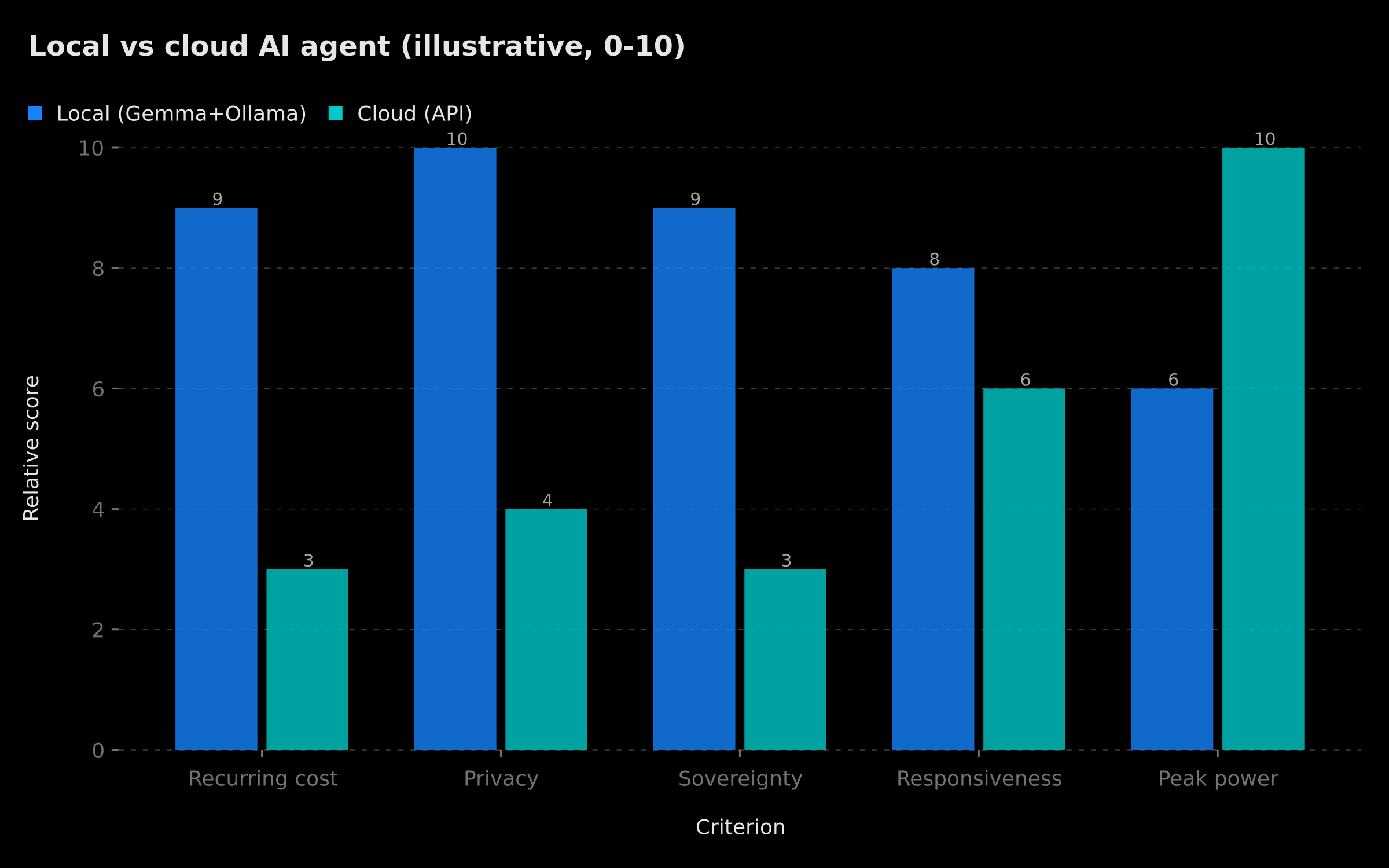 Local vs cloud comparison: local wins on recurring cost and privacy, the cloud on maximum reasoning power
For production: Gemma 4 2B is perfect for prototyping and simple-to-medium use cases. For production agents with high volumes or complex cases, we recommend either the 8B model on GPU, or a hybrid architecture local + cloud: local handles the bulk of routine and sensitive requests, and the cloud is called only for the rare cases that demand cutting-edge reasoning. It's this kind of balanced architecture that we regularly design at BOVO Digital.
Privacy and GDPR: why local is unbeatable
For a European company, the privacy argument goes far beyond simple precaution: it touches directly on regulatory compliance. When you send personal data to a cloud API, you trigger a whole legal apparatus — sub-processing, contractual clauses, and often an international transfer outside the European Union to govern.
A local Gemma Ollama n8n AI agent short-circuits all of that. Since inference happens on your own machine or server, no personal data is transmitted to a third party. You remain the sole data controller, there is no AI sub-processor to audit, and the international transfer question simply doesn't arise. For a data protection officer, this simplification is significant.
This obviously doesn't exempt you from your other obligations: data minimization, retention periods, server security, access logging. But you eliminate the trickiest link from the start — data exfiltration to an external service. For sectors where confidentiality is non-negotiable (healthcare, legal, HR, finance), this is often what makes the difference between "AI project blocked by legal" and "AI project approved."
Troubleshooting: the most common errors
A few problems come up regularly during setup. Here's how to diagnose them quickly.
"Connection refused" from n8n. The most common symptom. It means Ollama isn't receiving the request. First check that Ollama is running (ollama list should respond). If n8n is in a Docker container, localhost doesn't point to your host machine but to the container itself: use http://host.docker.internal:11434 (macOS/Windows) or the Docker gateway IP (Linux) instead.
The model responds very slowly. If you're on CPU with an 8B model, slowness is expected — switch back to the 2B or add a GPU. Also check that no other application is saturating your RAM: if the model no longer fits in memory, the system starts using disk (swap) and performance collapses.
Function calling doesn't return clean JSON. Small models are sensitive to prompt wording. Be explicit: ask "respond only with a valid JSON object, no text before or after". If possible, enable Ollama's "JSON" mode ("format": "json") to force a structured output, and add a validation node in n8n to handle the rare malformed cases.
Ollama isn't reachable from another server. By default, Ollama only listens on localhost. To expose it, start it with OLLAMA_HOST=0.0.0.0:11434 — but only behind a firewall or an authenticated reverse proxy, never in direct public access.
From demo to production
This setup is ideal for rapid prototyping without budget. When you've validated your use case and want to scale — with high availability, persistent memory, RAG on your documents, and monitoring — that's where a production architecture comes in.
The jump from "it works on my laptop" to "it runs reliably for the whole team" is where most local AI projects stall. Concurrent requests need a queue so they don't all hit the model at once; the GPU has to be sized for peak load rather than the demo; and you'll want logging, retries, and graceful fallbacks for the rare malformed output. None of this is exotic, but it's the difference between a clever prototype and a system people actually depend on. Getting that foundation right early saves you from a painful re-architecture later.
Read our article on n8n vs Make to understand how to choose your automation stack based on volume and context. And to turn an isolated workflow into a true intelligent system, our guide n8n AI Agent: transform your workflows into intelligent systems shows how to industrialize the approach.
You've validated your use case locally and want to move to production?
Discover our AI automation and intelligent agent services — and William Aklamavo's profile, who delivers these production architectures.
Tags
FAQ
What hardware is needed to run Gemma 4 locally?
Gemma 4 2B requires 8 GB RAM and runs on any modern laptop without GPU. Gemma 4 8B requires 16 GB RAM or an NVIDIA GPU with 8 GB VRAM. The 16B and 31B versions need a dedicated GPU with 16-24 GB VRAM for acceptable performance.
Does Gemma 4 support tool calls (function calling) for n8n agents?
Yes. Gemma 4 includes native tool use from its 2B version. In n8n, you can use the 'AI Agent' node with built-in tools (web search, database, email) pointing to the local Ollama API, exactly as with the OpenAI API.
Can I use Ollama with n8n Cloud or a VPS?
Yes. You need to start Ollama with OLLAMA_HOST=0.0.0.0:11434 to expose it on the network, then use the server's IP in the n8n configuration. For production security, put Ollama behind a reverse proxy with authentication.
Is Gemma 4 comparable to GPT-4o for automation use cases?
Gemma 4 8B is comparable to GPT-4o mini for classification, summarization, information extraction and tool use tasks. For complex reasoning and advanced code, GPT-4o and Claude Sonnet remain superior. For 80% of automation use cases (triage, summary, classification), Gemma 4 8B is sufficient.
Does Gemma 4's Apache 2.0 license allow commercial use?
Yes, the Apache 2.0 license permits commercial use, modification, and distribution, including in commercial products and SaaS services. You can integrate Gemma 4 into your production agents without royalties or commercial restrictions.
Is a local Gemma Ollama n8n AI agent really GDPR-compliant?
Yes, and it's one of its biggest advantages. Because inference runs on your own machine or server, no personal data is transferred to a third-party processor or outside the EU. You remain the sole data controller, with no international transfer to govern, which radically simplifies your compliance.
Stuck on a step? We take it to production
Tutorials stop where production starts: secrets, GDPR, no-shows, CRM. A 30-min call to scope the delivery.
- 30 min
- Scoped delivery
- No commitment
William Aklamavo
Web development and automation expert, passionate about technological innovation and digital entrepreneurship.


